App promotion videos need to do more than show a polished screen. They should make the app’s value easy to understand and give viewers a reason to explore it. But producing several original videos can take planning, filming, and editing time that a small marketing team may not have.
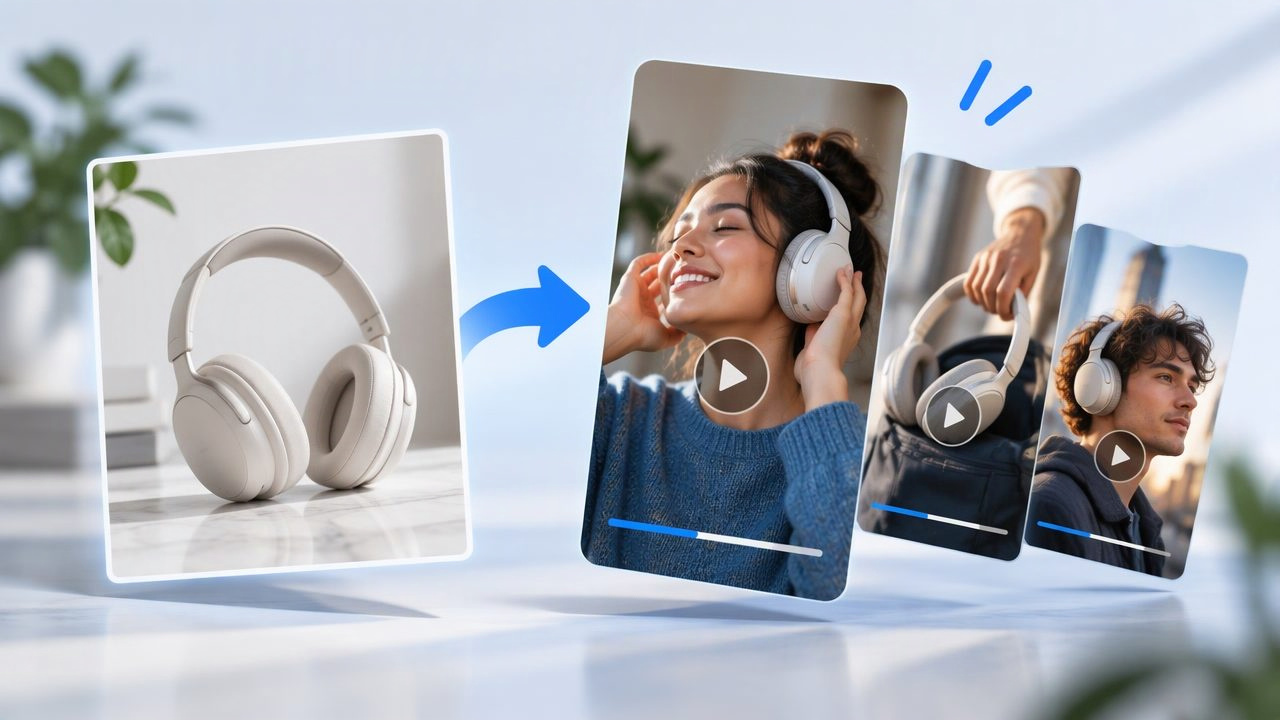
A product photo can provide a useful starting point for exploring app video concepts—particularly when the app is connected to a physical product. You can use the image as a visual anchor, then compare different UGC-style creative directions before deciding which one deserves more production effort. The key is to treat AI-generated concepts as creative drafts, not proof of how an app or product performs.
This guide explains how to create app promotion videos from a product image, how to compare concepts fairly, and where this approach has limits.
What makes an effective app promotion video?
An app promotion video connects a viewer’s problem to a clear use case. It may introduce a feature, demonstrate a workflow, answer a common objection, or show how the app fits into someone’s routine. The strongest concept is not necessarily the most elaborate. It is the one that communicates a relevant benefit accurately and quickly.
Before planning visuals, write down three essentials:
- Audience: Who is the video intended to reach?
- Use case: What task or need does the app address?
- Next step: What should a viewer do after watching, such as learn more or visit an app listing?
Keep claims specific and verifiable. If an app helps people organize tasks, say that it offers a way to organize tasks; do not imply that it guarantees a more productive day. This matters especially in creator-style ads, where conversational language can make an unsupported promise sound like a personal recommendation.
When a product photo can support app video creation
A product image is most useful when the app and a physical item have a genuine connection. For example, a home coffee brand might offer an app with brewing instructions, saved recipes, or product-care information. A clear photo of its coffee maker can establish the context for a video about using the app alongside the device.
The photo can help a creative team explore framing, mood, and the relationship between the item and the app’s use case. It does not show what the app interface looks like. If the video needs to demonstrate navigation, settings, or a specific feature, provide accurate screen captures or a screen recording as well. For a software-only app, screenshots and real interface footage are usually more relevant visual references than an unrelated product photo.
Use a sharp image with the product clearly visible and minimal background clutter. Check that logos, labels, colors, and product proportions are represented correctly. A single image may not show important details from every angle, so avoid a concept that depends on unseen features or precise physical interactions.
How to create app promotion videos from one image
1. Choose one message for the first concept
Do not try to explain the entire app in a short video. Select one audience need and one app-related use case. For the coffee example, the message might be: “Find brewing guidance for this coffee maker in the companion app.” Confirm that this is an actual function before writing the script. If it is not, choose a message that accurately reflects the app.
Then write a brief, plain-language script outline: opening hook, explanation of the use case, supporting visual, and next step. A hook should invite attention without making a claim the product cannot substantiate.
2. Treat the photo as a reference, not a complete story
Use the product image to establish the item’s appearance and role in the concept. Pair it with app screenshots or other approved assets wherever the interface matters. Be explicit about which details must stay true: product color, packaging, logo placement, and the app screen shown.
Keep creative direction separate from factual instructions. “A warm, conversational kitchen setting” is a stylistic choice. “Show the app’s saved brewing guide” is a factual requirement that should match the real interface. This distinction makes it easier to review a generated draft for both tone and accuracy.
3. Develop a small set of distinct concepts
Instead of generating many near-identical versions, compare a few concepts that change one meaningful creative variable. For example, keep the product image, audience, app use case, and call to action consistent while changing the hook:
- Routine hook: “Trying a new coffee maker? Start with a simple brewing guide.”
- Discovery hook: “Looking for ideas for your next cup? See what the companion app offers.”
- Setup hook: “Getting started with this brewer? Check the app for its setup instructions.”
These are creative examples, not verified app capabilities or claims about actual product results. Use only the line that matches the app’s real functions, and revise or remove any detail that is not confirmed.
4. Review each draft against the brief
Watch the video with the sound on and off. Check that the first seconds establish a relevant context, the product remains recognizable, and any app screen is accurate and legible. Review captions, spoken words, logos, and calls to action. A visually convincing draft can still misrepresent a feature or show an interface that does not exist.
For a practical explanation of the image-to-video workflow, see UGCMade’s guide to turning a product photo into a video. Use it as a production reference, then adapt the visual brief to the app and assets you can verify.
How to compare app video concepts fairly
A useful comparison makes it possible to see what changed and why. Keep the core message, visual references, approximate length, and audience consistent while varying one element at a time. If one version changes the hook, the product setting, the script, and the call to action all at once, you will not know which difference shaped the response.
| Element | Keep consistent | Possible test |
|---|---|---|
| Audience | Same intended user | Test a separate audience in another round |
| Core message | Same verified app use case | Change the opening hook |
| Visuals | Same product and accurate interface assets | Try a different setting or shot emphasis |
| Call to action | Same next step | Test a different call to action separately |
Label drafts clearly, such as “routine hook” and “setup hook,” and note the exact change in each. First compare them for message clarity, factual accuracy, readability, and fit with the intended placement. If you later run a live campaign, use the platform’s available measurement tools and a controlled test where possible. A generated draft alone cannot establish which version will perform better.
What AI-generated UGC-style concepts can and cannot tell you
AI-assisted video concepts can help a team explore different scripts, visual moods, and creator-style presentations from existing assets. They may be useful for early creative review, especially when the goal is to decide which direction to develop. They are not a substitute for confirming product facts, testing a real app workflow, or evaluating audience response.
Generated people, settings, gestures, or product details may look plausible without representing a real user experience. Do not present a fictional scene as a real customer testimonial, and do not imply that a person shown has personally used or endorsed the app unless that is true and properly authorized. Inspect every frame for inaccurate labels, distorted product features, and interface details that could confuse viewers.
There are practical limits, too. A still photo cannot provide every angle, demonstrate how an item operates, or reveal how an app behaves. If those details are essential, capture additional product views and accurate app footage. You may also need a real creator, voice talent, or professional production for a campaign that depends on authentic lived experience or precise demonstrations.
A simple example: a coffee maker companion app
Suppose a brand has a coffee maker and an app that includes confirmed setup instructions. The team selects a clean product photo and an approved screenshot of the setup page. It drafts two short UGC-style concepts with the same audience, product visuals, and next step. One opens with a setup question; the other begins by naming the app’s setup guide.
At the concept stage, the team can compare which opening is clearer and whether the product and screenshot support the message. The drafts do not prove that viewers will install the app, that setup will be easier, or that either hook will improve campaign results. Those questions require real user feedback or a measured campaign test. If the app does not actually contain setup instructions, the example must be rewritten around a verified function instead.
Make the photo a starting point, not the evidence
A product image can help shape app promotion video concepts when the app has a genuine connection to the item. Start with a verified use case, add accurate interface assets, and compare a small number of concepts by changing one creative variable at a time. Then review every draft for factual and visual accuracy before deciding whether to produce or test it.
The most useful outcome is a clearer creative direction—not a promise of performance. That distinction helps teams use AI-assisted content creation responsibly while keeping visual storytelling grounded in what the app and product really do.